Tree Tutorial
Organise JSON documents into paths, build a hierarchy, and serve it publicly with zero config. The file browser in the Admin UI, the REST endpoints, and the wren tree CLI — end to end.
1 Getting started
WREN runs as a single Docker container backed by Postgres.
docker compose up -d
# Admin UI → http://localhost:4000/admin
# API docs  → http://localhost:4000/docs
Open the Admin UI, register an account, and you’ll land in your personal organisation with an empty sidebar. This tutorial uses a running example: a taekwondo federation storing tournament data as a tree.
A tree in WREN is a named hierarchy of paths. Each path can hold a JSON document, be an empty folder, or both. Trees live alongside collections — in fact, the documents you attach to tree paths are stored in regular collections. Trees are just a way to organise them into a navigable hierarchy.
/events/masters-2026 is the “file” — it lives in some collection (say events) and has its own version history. Labels and schemas apply to the underlying document, not the path.
2 Your first tree
Trees are created implicitly the first time you add a path to them. There is no “create tree” action — just PUT a path and the tree appears in the sidebar.
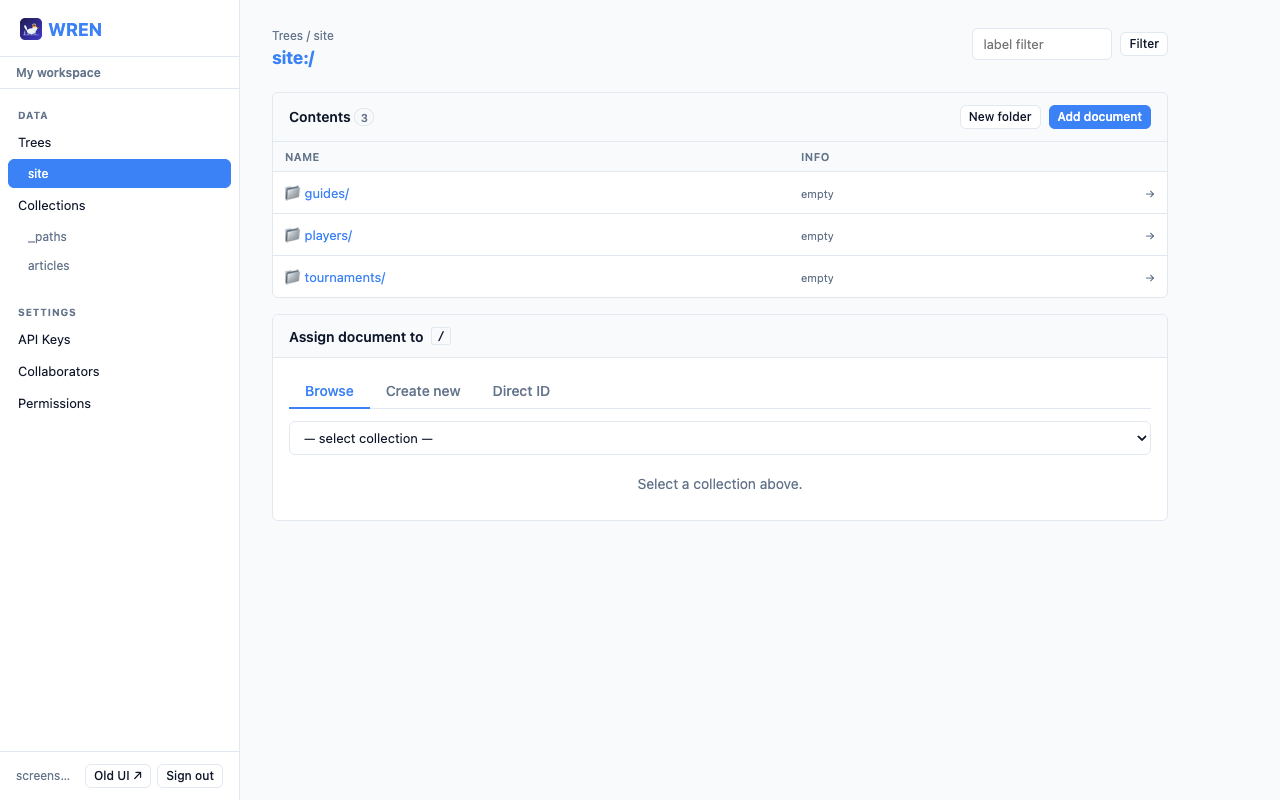
Create a folder in the Admin UI
- 1 In the sidebar, click Trees.
- 2 On the Trees overview, click Open next to any existing tree, or type a new tree name in the URL:
#/trees/events. - 3 In the Contents card, click New folder, enter
masters-2026, and click Create.
You’re now at events:/ › masters-2026 with an empty folder ready to receive a document.
From the CLI
wren tree set events /masters-2026
PUT /api/v1/tree/events/masters-2026
{}
Both commands create the /masters-2026 path as an empty folder. No document, no collection involvement — yet.
3 Attach a document
Once you’re inside a folder, the assign panel opens automatically. It has three tabs:
- Browse — pick an existing document from any collection.
- Create new — choose a collection, write the JSON, and create + assign in one step.
- Direct ID — paste a document ID you already know.
Add document button
From a parent folder, you can also attach a document directly to a child path without navigating there first. Click Add document in the Contents header:
- 1 Optionally type a path segment (e.g.
cigra-open). - 2 Pick a document — the child path
/events/cigra-openis created and the document attached. - 3 Leave the segment blank? WREN derives it from the document’s
filenamefield (for binary assets) or its display-name rule.
Create inline
The most common workflow for new data: pick a collection, write the JSON, click Create & assign.
# Create a document first, then attach
DOC=$(wren docs create events \
  '{"name":"Masters 2026","city":"Augusta"}' \
  --id-only)

wren tree set events /masters-2026 $DOC
POST /api/v1/events
{ "name": "Masters 2026", "city": "Augusta" }
→ { "id": "abc", "version": 1, ... }

PUT /api/v1/tree/events/masters-2026
{ "documentId": "abc" }
4 Nesting
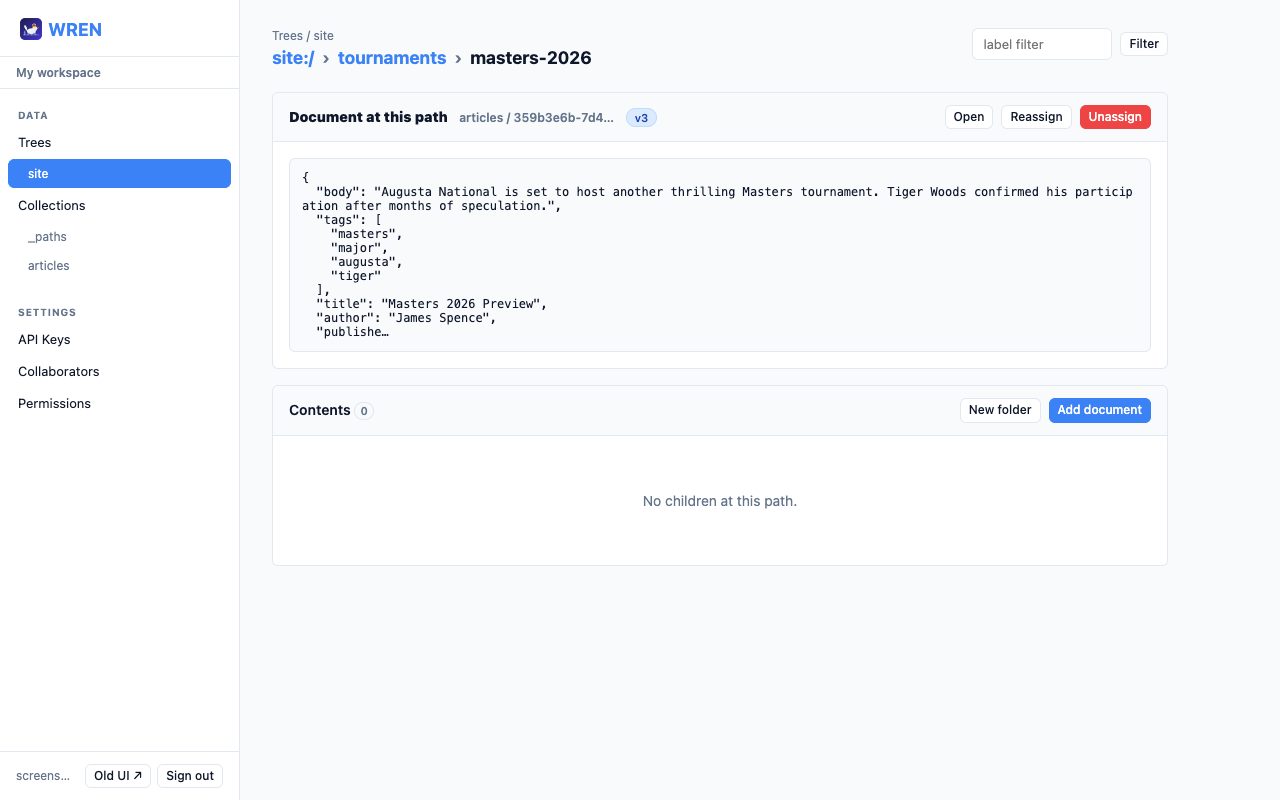
Any path can have children. From /masters-2026, click New folder again to create /masters-2026/round-1, then attach round-specific documents inside it. The breadcrumb at the top of every view lets you walk back up.
The tree browser shows first-level children only, so drilling into a deep tree is always one click at a time. Descendants several levels deep appear as folders (📁) with an item count; paths with an actual document show as documents (📄) with the assigned ID.
Masters 2026 becomes Masters-2026, not masters-2026.
5 Read it back
Single node
Fetching a single path returns the document at that path plus a list of immediate children.
wren tree get events /masters-2026
GET /api/v1/tree/events/masters-2026
→ {
  "path": "/masters-2026",
  "document": { "id": "abc", "data": {...} },
  "children": [
    { "path": "/masters-2026/round-1", ... }
  ]
}
Bundle a subtree
The killer feature for client apps: append ?full=true to get every document in a branch, all resolved, in a single request. Perfect for client-side caching.
wren tree view events
GET /api/v1/tree/events?full=true
→ {
  "tree": "events",
  "nodes": [
    { "path": "/masters-2026", "document": {...} },
    { "path": "/masters-2026/round-1", "document": {...} },
    { "path": "/cigra-open", "document": {...} }
  ]
}
6 Make it public
Trees can be exposed as public read-only URLs with a single permission rule. Grant principal=* read access to tree:events and every path in that tree becomes accessible without auth.
wren permissions create \
  --principal '*' \
  --resource tree:events \
  --access read
POST /api/v1/permissions
{
  "principal": "*",
  "resource": "tree:events",
  "access": "read"
}
Now anyone can fetch your tree by the org slug — no API key, no Authorization header:
# Canonical API-v1 form
curl https://api.example.com/api/v1/orgs/tkd/tree/events/masters-2026

# Short alias for browser-friendly URLs
curl https://api.example.com/orgs/tkd/tree/events/masters-2026
wren org set-slug <slug>. Slugs are how the world addresses your public trees.
7 Versions at paths
Every document attached to a path keeps its own version history. Update the masters-2026 document five times and the tree path keeps pointing to the latest version by default — but you can query any version explicitly.
Path assignments themselves are also versioned: every PUT to a tree path creates a new version of an internal tracking document in the _paths collection. You can see the history of who reassigned what, when, on the document’s Paths tab.
8 Labels on the whole tree
Labels are the cleanest way to run draft and published workflows. Pin a label on each document, then pass ?label=published when reading the tree — every path resolves to its labelled version atomically.
# Pin version 2 of the Masters doc as 'published'
wren labels set events abc published 2

# Serve the published snapshot of the whole tree
curl /api/v1/tree/events?full=true&label=published
Documents without the requested label are silently skipped. This makes ?label=published a safe way to build a “live” view of the tree that ignores half-edited drafts.
9 Empty folders
You don’t have to attach a document to every path. Empty folders are first-class: they exist as an explicit entry in the paths table, show up as folders in the file browser, and can be created and removed independently of any document.
Useful for laying out the tree shape before the content lands — draft a conference schedule with empty day folders, then attach session documents later.
- 1 Click New folder in the Contents card to create.
- 2 Click Remove folder on an empty path to delete the explicit entry (the path reappears as an implicit parent if it still has descendants).
10 Fetch from a client app
Public trees are designed to be fetched directly from a browser with no backend in between. Pair ?full=true with caching headers or a CDN to ship dynamic data with static-site economics.
// In a React / vanilla JS app
const res = await fetch(
  "https://api.example.com/orgs/tkd/tree/events?full=true&label=published"
);
const { nodes } = await res.json();

// nodes is now [{ path, document }, ...] for the whole tree
const byPath = Object.fromEntries(
  nodes.map(n => [n.path, n.document.data])
);

// Look up a specific event instantly
const masters = byPath["/masters-2026"];
One request. All the data. No client-side joins, no N+1s.
11 Next steps
- Main tutorial — collections, schemas, binary assets, API keys, collaborators, permissions.
- API reference — every endpoint with request/response shapes.
- Admin UI — the file browser lives under the Trees section of the sidebar.